Rhythm Send integrates with HubSpot to let you import Contacts, Companies, and Lists (segments) from your HubSpot portal into Rhythm Send.
Install and connect HubSpot
- Log in to Rhythm Send.
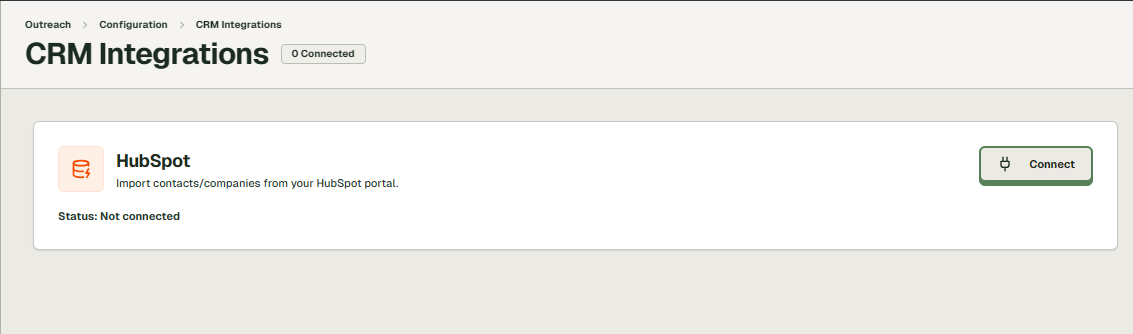
- Navigate to Settings → CRM Integrations (
/settings/crm). - Under HubSpot, click Connect.
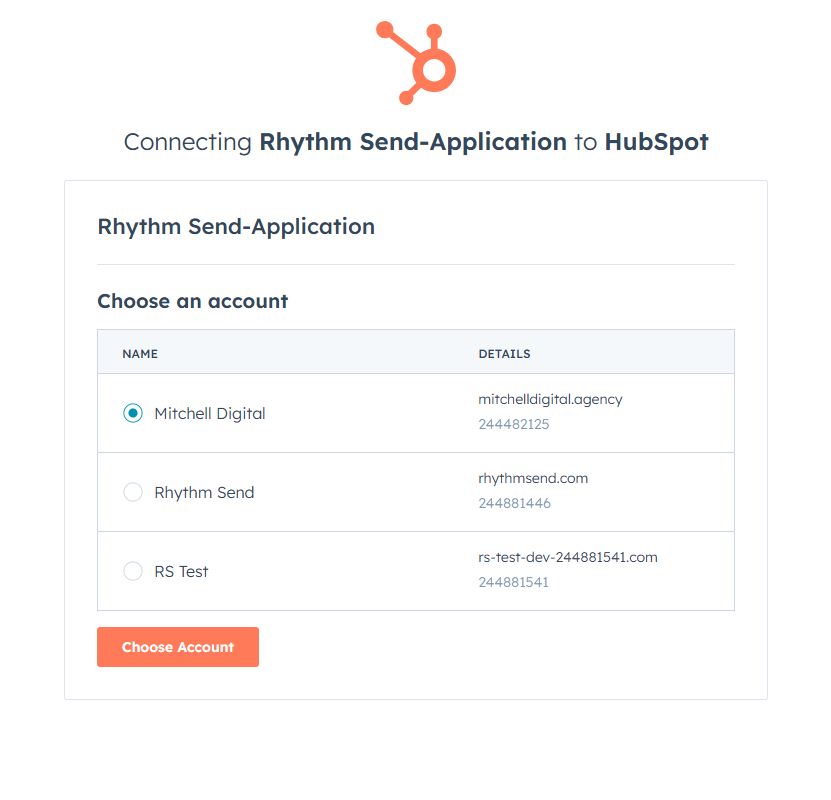
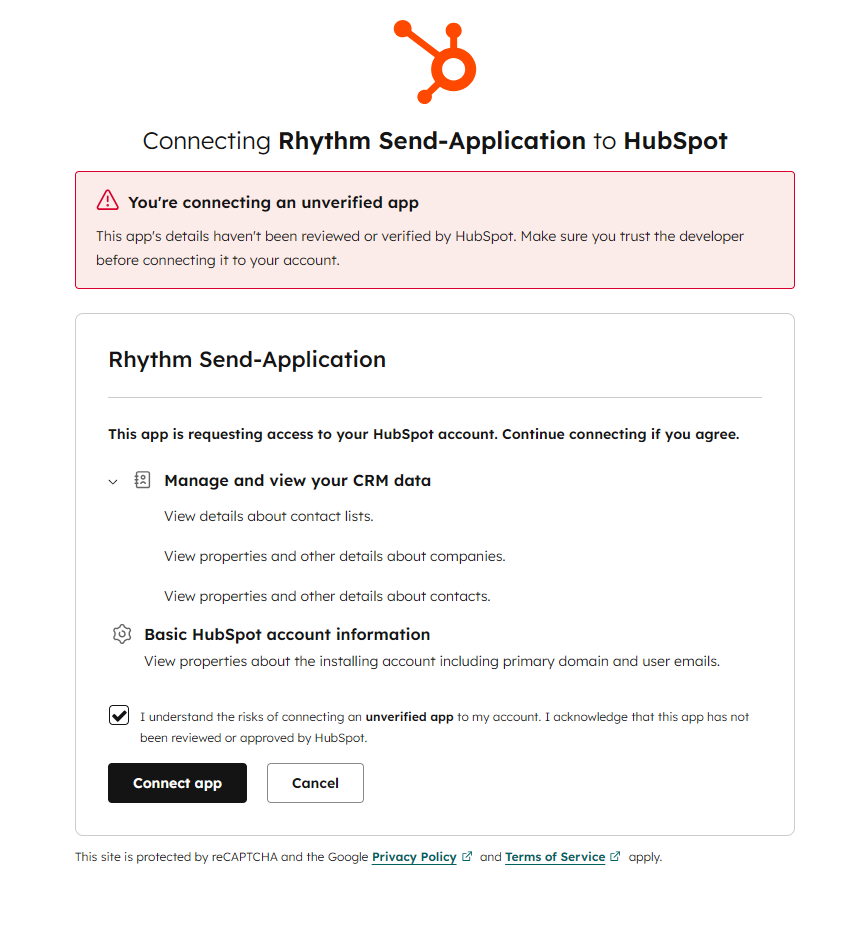
- You’ll be redirected to HubSpot to choose an account and approve requested permissions.
- After approval, you’ll be redirected back to Rhythm Send and HubSpot will show as Connected.
Permissions (OAuth scopes)
Rhythm Send requests read access to:
- Contacts (
crm.objects.contacts.read) - Companies (
crm.objects.companies.read) - Lists (
crm.lists.read)
These permissions are used only for importing data you explicitly choose to import.
Use the integration
Import from a HubSpot list (segment)
- In Rhythm Send, go to Settings → CRM Integrations.
- Under HubSpot, select a HubSpot segment (list).
- Select a destination list in Rhythm Send (or create a new one).
- Click Import.
Disconnect HubSpot
- In Rhythm Send, go to Settings → CRM Integrations.
- Under HubSpot, click Disconnect.
What happens when you disconnect
- Rhythm Send will no longer be able to access HubSpot data for imports.
- Data already imported into Rhythm Send remains in Rhythm Send until you delete it.
- Data in HubSpot is not deleted or modified by disconnecting.
Uninstall the app (in HubSpot)
To uninstall the integration from HubSpot, uninstall the app from within your HubSpot account’s installed apps/integrations settings.

Rhythm Send
Automate your entire outbound stack. Enrich contact data, personalise emails at AI-scale, and manage sequences—all on autopilot.
Stay updated
Subscribe to our newsletter for the latest updates and sales tips.
© 2026 Rhythm Send. All rights reserved.